Is the HP Omnibook X Flip the Laptop of Choice for Creatives?
A creative's dream machine
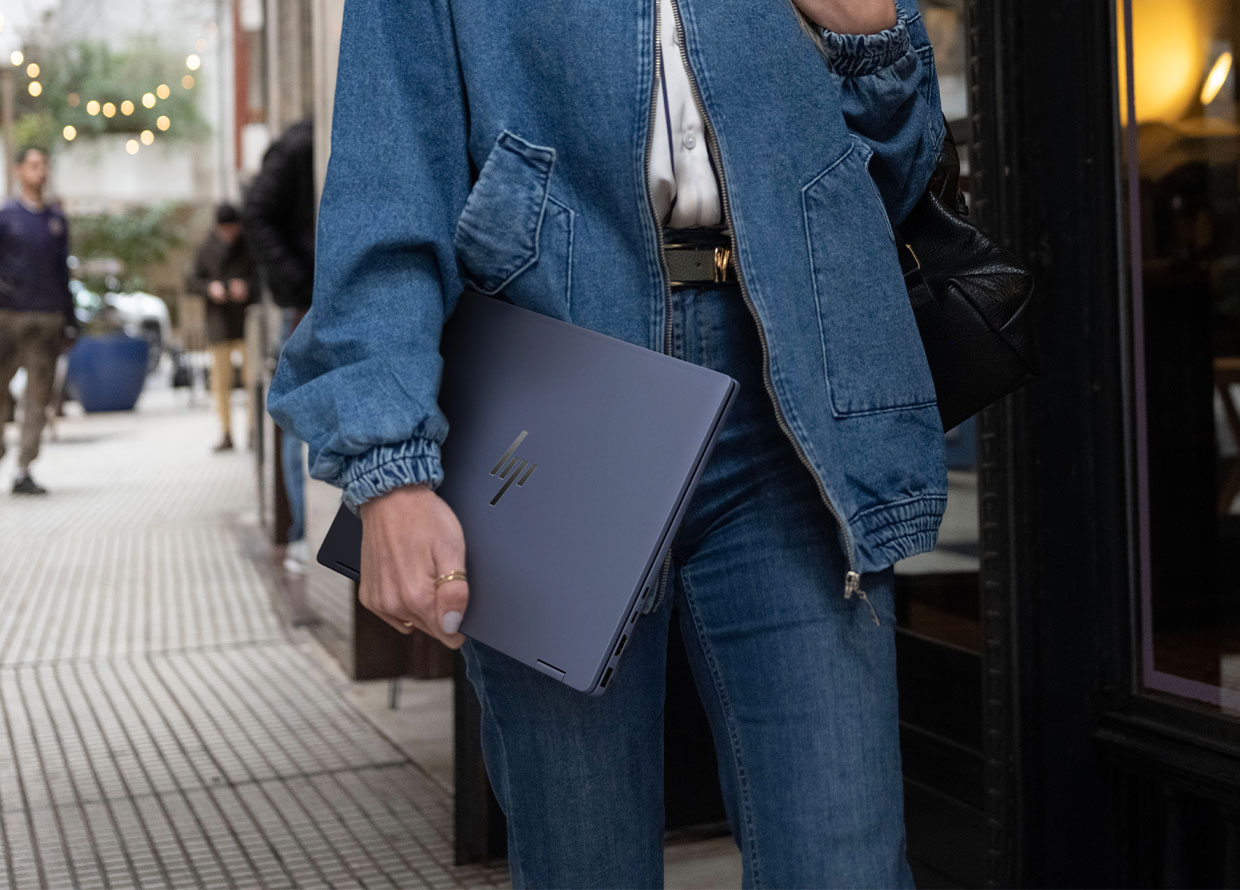
Is it a laptop? Is it a tablet? The answer is yes—and more! Below, our Beauty Editor recounts her honest experience with the HP Omnibook X Flip.
Whether it’s sketching out storyboards or braining up content, every modern creative needs a machine that can keep up with their ideas—and match their pace. The HP Omnibook X Flip promises to be just that: a versatile, high-performance device that is designed to effortlessly shift between cafe workdays, office desks and red-eye flights.
In the ever-blurring line between form and function, the HP Omnibook X Flip makes a chic statement. Part laptop, part tablet, and fully functional, its 360-degree hinge, pen-enabled touchscreen, and AI-powered tools make it the ultimate partner for creatives—at least in theory.
I’ve been on the hunt for a machine that can handle my full job scope, and I think I’ve found it. Ahead, find my full review of the HP Omnibook X Flip, beyond the spec sheet.
FIRST IMPRESSIONS

Straight out of the box, I noticed three things. First, the laptop was very sleek (I’ve got the Atmospheric Blue colourway, for those who are curious). Secondly, it wasn’t super heavy, clocking in at 1.39 kg. Third, the laptop came with a pen. How fun!
The first thing I did after unboxing my new laptop was test the flippability of the 360-degree hinge, and I have to say I’m impressed. I’ve had my fair share of shoddily-built laptops in the past (my old gaming laptop’s screen quite literally ripped clean off the base two weeks after I got it), so this is often the first thing I check for. I was so pleased to find that the HP Omnibook X Flip felt very sturdy and well-constructed—no risk of falling apart here!
The layout of the laptop is perfect for me, too. The trackpad and keyboard spacings are nice and wide, which makes them very comfortable to use. Also, the keyboard is super responsive and feels very tactile, which is ideal for someone like me who writes for a living!
Further, setting up the laptop was a total breeze. All it took was a short 15 minutes to restore my previous laptop’s backup, and I was ready to go! If anything, the only tough part was trying to figure out whether I was using a US or UK keyboard layout (spoiler alert: it’s a US layout), but that’s more on me than the laptop. Besides, everything else was super straightforward. I even got to set up face recognition (a feature that’s very new to me on a desktop device), and while it has its kinks, it’s still great to have it as a security option.
MY EXPERIENCE

Part 1: The basics
Getting used to Windows was a bit of a learning curve, but there is a lot to love about this laptop. For a start, the display looks great, boasting a high-resolution 2K multitouch display that’s perfect for what I need it for—writing on Docs, surfing the web, watching YouTube and Netflix, and playing the occasional game (more on that later!).
Secondly, the versatility of the device is fabulous. Most of the time, I keep it in laptop mode, but I love having the option to convert it to the tablet, tent, and reverse modes, too. Frankly, it has made my TV and reading time a lot more comfortable. Whether I’m sitting up, lying on my back or perched on my side, the laptop moves and adapts with me!
I have also been very impressed with the laptop’s battery life. I can easily go a whole day, running the PC on max capacity, without needing a charge. And, when I do need to charge the laptop, it takes just 45 minutes to reach 50%. Considering that I’m typically on the move, working remotely throughout the week, great battery life is just something I cannot compromise on.
Part 2: The stress test
I was worried that the laptop wouldn’t be able to handle running photo and video editing software seamlessly, but I’m glad to report I have been proven wrong. I’ve even been able to run Photoshop and CapCut simultaneously with no issues. Better yet, it’s actually made etching out and editing pictures and videos a lot easier thanks to the nifty touchscreen and smart pen.
A pleasant surprise was finding out that the HP Omnibook X Flip fares well for work and play alike. I can’t say whether the laptop would be able to cope with more intensive games like Cyberpunk or Skyrim, but the laptop had no trouble running Stardew Valley and Jackbox (AKA the only games I really play these days). My current gamer setup is simple: the Omnibook X Flip in laptop mode, my Bluetooth mouse, and the HyperX Cloud III Wireless Gaming Headset. The headphones in particular are a must for me—the sound quality is great, it comes with a detachable microphone in case I’m keen on logging into a Discord call, and the memory foam cushion on the ear cups makes it comfortable to wear for hours on end.
Part 3: The learning curve
Among the laptop’s most notable features is its AI functionality, powered by its Intel Core Ultra 7 processor and dedicated NPU, capable of up to 47 TOPS. With a press of my laptop’s CoPilot+ button, I have access to the HP AI Companion, a built-in feature operated through secure local processing.
To be completely honest, I’ve struggled to integrate the AI features into my workflow seamlessly. While it’s a great tool to have on hand, I think there is definitely room for improvement. For work, I’ve been using the AI companion to boost efficiency and productivity where I can—think digital thesaurus, converting screenshots into editable text, and optimising the SEO markers for my stories—but I haven’t quite gotten the hang of its full capabilities. I suspect I will just have to continue exploring the tool as time goes on.
That’s not to say all is lost with the feature, though. The AI companion is great for more miscellaneous tasks, like helping me practise my French and finding me cheat codes and hacks for Stardew Valley. Ultimately, while it isn’t a must-have feature for me, I have enjoyed exploring different ways to play around with the AI companion.
Part 4: Making the call
The last thing I wanted to test was the Omnibook X Flip’s camera quality. In short: so far, so good! The laptop boasts a 5MP IR camera, which delivers great live photo and video feeds on the Camera app as well as on video calls. I have also been playing around with the Poly Camera Pro app, and I can see the AI enhancements like Spotlight and Background Blur being very useful for recording video interviews and doing remote meetings.
What I love the most about the camera, however, is the peace of mind it gives me. The camera is easily blocked with the built-in privacy shutter, which is a sure upgrade from the worn-out sticker I was using on my old laptop!
THE TAKEAWAY

So, to answer the question of whether the HP Omnibook X Flip is a good fit for creative work: Yes! It definitely has its drawbacks, but overall, I’ve actually enjoyed my experience with the laptop, and it has become my go-to device for day-to-day.
The HP Omnibook X Flip 14” is available to shop here for RM5,599.
For more tech reviews like this, click here.
| SHARE THE STORY | |
| Explore More |